
Tags and folders
Last updated 4 November 2026
Settings ▸ Tags & Folders is where you tell MindLake what your tags mean and which ones matter: your categories, the rules the AI keeps to, a status and a glyph for each tag, and a line on what each folder is for.
One page for your vocabulary
Settings ▸ Tags & Folders lists every tag with how many notes carry it, and every folder, each with a line on what it is for in your own words. Everything you decide there is kept in your vault, in _Meta/Tags.md, so it syncs to your other Macs and any editor can read it. The file lists only what you decided; a tag you never touched is not in it. Auto-filing, Retag & Link, the chat, Organise and apps connected to your vault all read the same page.
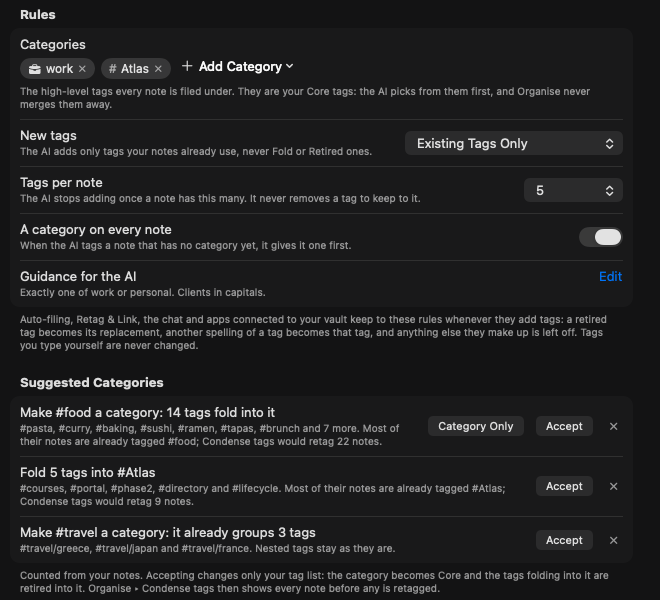
Rules
The card at the top holds the rules the AI keeps to whenever it adds a tag:
| Rule | What it does |
|---|---|
| Categories | The high-level tags every note is filed under, such as work and personal. They are your Core tags: the AI picks from them first, and Organise never merges them away. Add Category offers your existing tags. |
| New tags | Categories Only: the AI adds only your categories. Existing Tags Only: only tags your notes already use, never Fold or Retired ones. One New Tag If Nothing Fits: it may add one new tag to a note when none of yours fits, never another spelling of one you have. |
| Tags per note | No Limit, or a number. The AI stops adding once a note has this many; it never removes a tag to keep to it. |
| A category on every note | When the AI tags a note that has no category yet, it gives it one first. |
| Guidance for the AI | How your tags work, in your words: “Exactly one of work or personal. Clients in capitals.” It is given word for word to the AI whenever it tags a note. |
Whatever the AI makes up outside these rules is left off. A Retired tag becomes its replacement, another spelling of a tag becomes that tag, and a tag you type yourself is never changed. Once you have marked anything on this page, the AI no longer invents new tags unless the rule allows one.
Suggested categories
Under the rules, MindLake suggests categories from how your notes are already tagged: “Make #food a category: 14 tags fold into it”, or “Fold 5 tags into #atlas”, each with the tags it means and how many notes Condense tags would retag. Accept makes the category Core and retires the tags that fold into it, naming the category as their replacement; Category Only makes the category without retiring anything; × dismisses the suggestion. Accepting changes only your tag list. To retag the notes themselves, run Organise ▸ Condense tags, which shows every note before any is changed. Nested tags stay as they are.
Tags
Every tag is a row with its glyph, name and meaning, how many notes carry it, and its status. Click Tag or Notes in the heading to sort by name or by use; click the same heading again to reverse it. The filter beside Find shows All, Core, Fold, Retired, No Meaning or Used Once.
| Status | What it means |
|---|---|
| Normal | An ordinary tag. The AI may use it, and Condense tags may propose folding it into a broader one. |
| Core | A tag you rely on, marked with a star beside its name. Organise never merges a Core tag into another, and the AI sees Core tags first, with their meanings. |
| Retired | A tag you are done with, shown struck through. Name a tag to use instead and the AI uses that one; Organise offers to move the Retired tag’s notes to its replacement. It is never suggested again. |
| Fold | A tag you want gone but have not found a home for. It is never suggested for new notes, and Condense tags recommends, note by note, a Core or Normal tag to fold it into, with the reason and how sure it is. |
- Meaning. Click Edit on a row to say what the tag is for. A faint line is a first guess from your notes, such as “All in Clients, often with #work”, until you write your own.
- Rename. Click the tag’s name, or right-click the row and choose Rename Tag…, and type the new one. It changes in every note, and the tag keeps its meaning, status and glyph. Renaming from the sidebar keeps them too.
- Glyph. Click the space to the left of a tag’s name, or right-click it, to give it a symbol or an emoji. It shows in place of the # in the sidebar and beside the tag here, and it is saved in your vault with the tag’s meaning, so it follows you to every Mac. Right-click a tag in the sidebar and choose Glyph for the same menu.
Folders
Every folder is listed with how many notes it holds and a line on what goes in it, again with a first guess until you write one. Folder descriptions help the AI choose between close folders when it files a note; see Smart filing.
Where the rules apply
- Filing and tagging. When MindLake’s AI tags or files a note, or you run Retag & Link, it sees your Core tags first with what they mean, and every tag you use rather than only part of the list. A tag your vault keeps almost only in another folder is not added, and the tags the people in the note usually carry come first.
- Organise. Suggest tags only ever offers tags you already use, spelt the way your sidebar shows them; Condense tags never merges a Core tag away and never proposes a Retired one. See Organise.
- Imports. A tag arriving from another app passes through the same gate: a spelling you have lands on your tag, a Retired tag becomes its replacement, and anything new comes in under the service’s name. See Import your notes.
- The chat and connected apps. The assistant, and any app reading your vault through the MCP server, keep to the same rules when they add tags.