
What the assistant can do
Last updated 4 November 2026
Beyond answering: the assistant opens notes and views for you, renames a name across your whole vault with a preview first, helps with Organise’s jobs, draws diagrams, keeps a queue of what you type while it works, and shows every step as it goes.
A reply as it is written
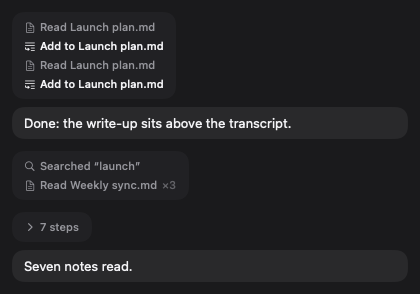
The assistant’s words come in as it writes them, whichever AI you have connected, and each answer reads as one message, with the steps it took in their own bubbles, level with the reply, between the words they came between. A step is a small pill, such as Read Weekly sync.md or Searched “gifting”; repeats are counted (×3), and a long run folds to “7 steps” until you open it. Any note a reply names is a link: one click opens it.
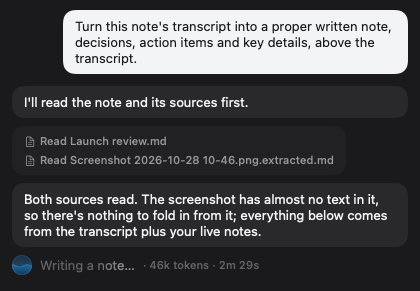
While it works, the row at the bottom of the reply says what is happening (“Reading Standup.md”, “Writing a note”, “Waiting for your approval”), how much of the conversation the model is holding and how long the turn has run. Send becomes Stop, which ends the reply but keeps the conversation.
It opens things for you
Ask the chat to show you a note and it opens it, scrolled to the part that matters and highlighted, instead of pasting bits of it into the reply. It can also take you to a view:
| Ask for | It shows |
|---|---|
| “Show me the launch plan” | The note, open in a tab, scrolled to a heading or a line when you name one. |
| “Show my open tasks for Acme” | Tasks, filtered by words, tag, folder or person, with done tasks if you ask. |
| “What is on next Tuesday?” | That day in Schedule. |
| “Notes tagged #research”, “the Clients folder” | All Notes narrowed to the tag or the folder. |
| Contacts, the graph, Sources, Snippets, Organise | That section. |
It works on every connection on the Mac: MindLake AI, your own key, a model on this Mac, and an AI app installed on this Mac, which moves the copy of MindLake it was started from. A link never creates a note and never writes, and a locked note opens behind its lock. The iPhone chat cannot move the app yet; there, a note a reply names opens with a tap.
Honest about what it changed
A change is reported only when it has landed, and anything that failed is named. Renaming a note changes its title and heading, not its file or its folder, and the assistant does not rewrite links to titles that do not exist. With Let the AI take actions off, it has no writing tools at all. Whatever your edit setting, a request to run a command or fetch from the web always gets an approval card, and a no in read-only mode. On MindLake AI, a model on this Mac or your own key, with edits applying automatically, a new note anywhere but the chat’s own folder (or the Inbox, for a vault-wide chat) is put to you first, and the assistant cannot write in Chats, Sources, Recently Deleted or a sealed note. See Chats for the edit settings, approval cards and edit history.
Rename something everywhere
Ask it to rename a name across your vault, a project, a person, a product, and it shows you what would change first: folders, note titles, note text, tags and people, whole words only, following the case you used. Once you approve, it does the lot in one go; Approve All never covers a rename. Transcripts, web links, chats, sources and locked notes are left as they are, and each note’s earlier version is kept in its history. The preview is planned in the background and reused when you say go ahead, so it never holds the app up. It is offered with MindLake AI, your own key or a model on this Mac.
Help with Organise
With Organise open, the chat works on the job you are looking at. It names the job, offers starters made for it (link these orphans to related notes, write up this week’s meetings, merge near-duplicate tags) and lets you switch between this job and all jobs. Give it fuller instructions, such as “link each orphan to the two closest notes, but skip anything in Personal”, and it shows a plan of every change first; nothing changes until you say yes, and Approve All applies the rest of a plan you have agreed to. See Organise.
Diagrams and canvases
Asked for a diagram, the assistant first decides whether one is worth drawing, then picks the right kind (steps, messages over time, states, dates, a two-axis comparison), keeps it small, marks at most two boxes as the focus and says what it left out. It writes the diagram into the note, where it is drawn in the note’s own paper and ink, or saves a new canvas straight into your vault. See Notes and the editor and Tables and canvas.
Keep typing while it works
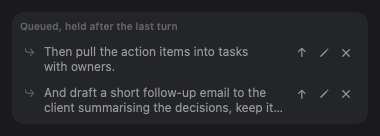
A message you send while a reply is still coming joins a short queue above the chat box, and goes out by itself as soon as the reply finishes. Take one back into the box to change it, or drop it. Stopping a reply holds the queue, with a send button on each message for when you are ready.
The row under the chat box
Three choices sit under the box, each a small icon that opens a list you can read at a glance:
- Which AI answers: MindLake AI, an assistant installed on this Mac, or a service you have a key for. Its name reads with what is left of the month on MindLake AI.
- Its model, and, where the AI takes one, how hard it thinks. A change applies from your next message.
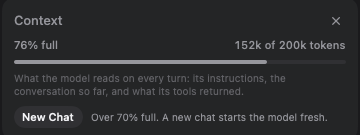
- The context ring at the end of the row fills as the conversation grows and turns amber near the limit. Click it for the figures, and for New Chat once it is mostly full. For an AI that does not say how much it can hold, it shows the count alone. The button that reads replies aloud is in the same row.
Tasks and dates
The assistant can list your tasks by due date, folder, tag or person in one go, and it is told today’s date, with yesterday, tomorrow, this week, last week and this month as exact dates, so “what did I agree last week” means last week. Send to Chat on a task quotes it into your message, and Talk about it starts a chat already listening; see Tasks and Voice.
⇧⌘A opens the chat on what you are looking at; ⌘/ shows or hides the panel. See Keyboard shortcuts.