
Import your notes
Last updated 4 November 2026
Settings ▸ Import brings a whole life of notes into your vault from the major note services, keeping formatting, pictures, tags, dates, folders and the links between notes, with a preview before anything is written.
Where it is
Settings ▸ Import, on the Mac, has a tile for each service MindLake can read. Click a tile, or drop an export onto the page: a file, a folder or a .zip. MindLake works out what the export is, plans the import and shows you what will arrive before a single note is written. The iPhone app has no import yet.
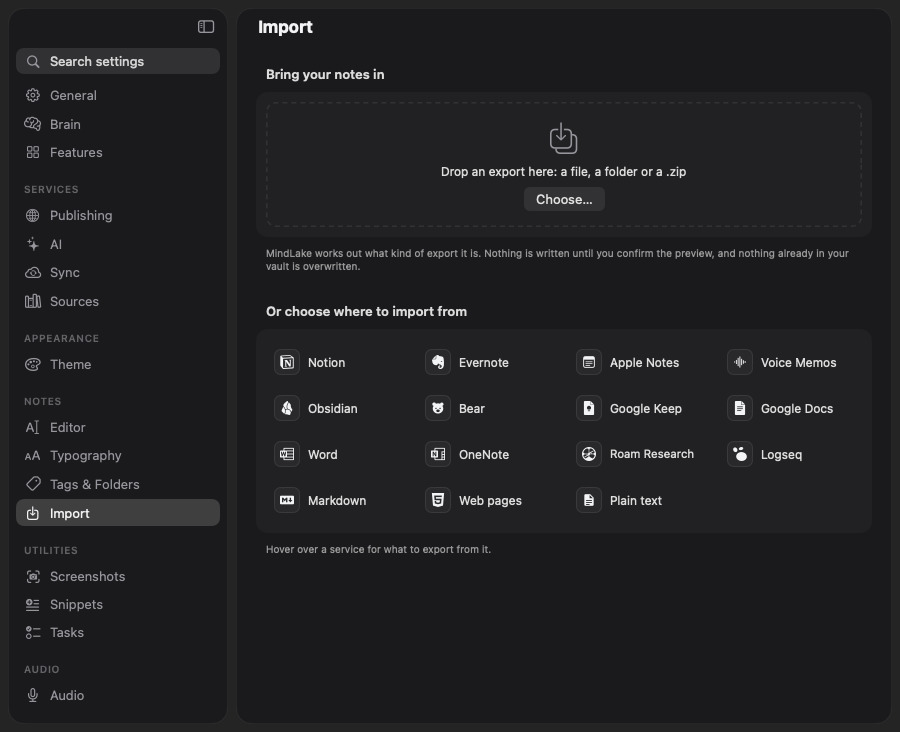
What each tile reads
| Tile | Give it |
|---|---|
| Notion | Settings ▸ Export, Markdown & CSV, with subpages. Drop the .zip. Pages become folders, page ids come off the names, the property lines under each title come with it, links between pages become note links, and databases become lists. |
| Evernote | Export each notebook as an .enex file and drop them, or a folder of them. One folder per notebook: rich text, checkboxes, tables, pictures and attachments, tags and dates. |
| Apple Notes | Nothing to export: it reads your notes straight from the Notes app on this Mac, with their folders, pictures and dates. Locked notes and Recently Deleted are left out, with a warning. |
| Voice Memos | Nothing to export: it reads your recordings from Voice Memos on this Mac, or you can drop audio files. Each memo becomes a note with its recording beside it, titled and dated as the memo was, and is transcribed once it is in. |
| Obsidian | Choose the vault folder itself. Frontmatter, wiki links and embeds, headings and aliases in links, folders, and pictures wherever the vault keeps them. |
| Markdown | A folder of .md files. Frontmatter and wiki links are kept. |
| Bear | Export as Markdown with attachments, or drop a backup file. Inline #tags become the note’s tags, and bundle assets come with their notes. |
| Google Keep | Takeout ▸ Keep. Drop the .zip or the Keep folder. Text or checklist, labels, dates and attachments; the bin is left out and Archived gets a folder of its own. |
| Google Docs | Takeout ▸ Drive as .docx, or download each document as .docx. Read as Word documents. |
| Word | Drop .docx files or a folder of them. Headings, lists, checkboxes, bold and italic, links, tables, pictures, title, author, keywords and dates. |
| OneNote | Export each section as a Word document (.docx) and drop them. |
| Roam Research | Export All as JSON, or as Markdown. Blocks become nested bullets, headings stay headings, TODO and DONE become tasks, and daily pages go in a Daily Notes folder. |
| Logseq | Choose the graph folder, the one holding pages and journals. Page properties, TODO and DONE, namespaces and journals come across; block ids and folding marks come off. |
| Web pages | Saved web pages and HTML exports, pictures kept. The page’s title, dates, keywords and author are read. |
| Plain text | Plain .txt files, one note each. |
PDF, RTF, .doc, .odt, EPUB and web archives found inside a folder export are read the way File ▸ Convert Document… reads them. If MindLake guesses the wrong service, the preview’s Read as menu picks another and plans again.
The preview
Choosing or dropping an export reads it and plans the import. The vault is untouched until you press Import.
- What is coming in: how many notes, pictures and files, as a tile each, and the note types they become as coloured tiles below. Short notes in your own words come in as Ideas, so Organise can gather them later; mostly tasks make a Plan; a table, a long sectioned document or a page of links is Reference; a file with little text is Media.
- The folder tree the notes will make, and sample notes to open and check.
- Anything that did not convert: a picture that could not be found, a link to a note not in the export, a memo that was never downloaded. Each is a warning; the note still comes in and the link is left as it was.
- Tags: how many matched tags you already use, how many are new, and how many were left off.
- Import into: a folder named after the service and the date, such as
Import/Bear 2026-11-03, unless you type another or pick one you already have from the menu. Changing it does not read the export again.
What comes across
- Formatting. Headings, lists, checklists, tables, quotes, bold and italic, code and links. A note gets one top heading equal to its title; any other top-level heading steps down one level. A heading called Transcript is renamed Transcript (imported), because MindLake keeps a recording’s own transcript under that name.
- Pictures and attachments are copied beside the note and shown in it, as a picture you add yourself would be. A picture used twice is copied once.
- Links between notes become
[[note links]]to the imported note’s title, with any alias kept. A link to a note that is not in the export stays as written. - Tags pass through your tag rules (see Tags and folders): a tag you already use is matched to yours, another spelling of it lands on the one you have, and a Retired tag becomes its replacement. A tag your vault has never seen comes in under the service’s name, as in
bear/work, so nothing is lost and imports never mix into your own tags. Only tags you have retired outright, or set to Fold, stay off. - Dates, folders, people and the title come across in MindLake’s own frontmatter. Anything MindLake has no place for, such as a status, an author or a database’s columns, is kept as a Property and Value table under the title, so it is never lost at the first edit.
- Databases and tables from a workspace export become lists, with a type chosen for each column. See Tables and canvas.
Safety
- Nothing is overwritten. A note or picture whose name is taken gets a number, as in
Title 2.md, checked again at the moment it is written. - Your originals are untouched. The export, the Notes app and Voice Memos are only read.
- Imports stay inside the export. A link inside an export that points outside it is skipped, never followed, and a zip that unpacks to many times its size is stopped and cleared up, with a message.
- Stop and resume. A long import can be stopped, and it keeps running if Settings closes. One import runs at a time. The page lists unfinished imports with Resume and Discard; a note already written is skipped on resume, never duplicated.
Voice Memos and the Notes app
Reading Voice Memos needs Full Disk Access for MindLake. If it is off, the tile says so and opens System Settings at Privacy & Security ▸ Full Disk Access; turn MindLake on there, reopen MindLake and choose Voice Memos again. Until then you can drag recordings out of Voice Memos and drop them on the tile instead, which needs no permission. Each memo arrives as a note with its recording and is transcribed on your Mac one at a time, so a large library queues a good deal of transcription; see Recording meetings. Reading the Notes app asks for permission the first time.
Not imported
- Footnotes, comments and tracked changes in Word documents.
- Attachments in the Notes app other than inline pictures: PDFs and audio stay in Notes.
- A recording a service never downloaded to this Mac.
- Open Settings ▸ Import and click the tile for the service, or drop the export anywhere on the page.
- Read the preview. Fix the Read as choice or the folder if you need to.
- Click Import. The notes appear in All Notes as they are written, and Organise lists any that need a look.