
Smart filing
Last updated 4 November 2026
A note in the Inbox finds its folder from the rest of your vault: who is in it, where those people’s notes live, their email domains, the calendar series it belongs to and the words it uses. A clear case moves on its own with an Undo; a close one is left to the AI; a weak one waits for you.
How a note finds its folder
Smart filing works on your Mac, with no model and no network, so it runs with AI off. It reads every note you have already filed to learn where things go, then scores a note in the Inbox against that. Each kind of evidence votes for an area of your vault, and the votes are weighed by how much stands behind them.
| Evidence | What it reads |
|---|---|
| People | The note’s people and named speakers, and where their other notes are filed. You and unnamed speakers do not count. |
| Email domains | The domains of the contacts in the note and addresses in its text. Free-mail domains and your own are ignored. |
| Organisations and contact tags | The organisation on a contact, and the tags you gave them in Contacts. |
| Calendar | The meeting series the note came from: every occurrence of a recurring meeting shares it. |
| Similar notes | The notes nearest in meaning, or, until the meaning index is ready, the notes sharing its rarer words. |
| Words and tags | Words concentrated in one area of your vault, and the note’s own tags. |
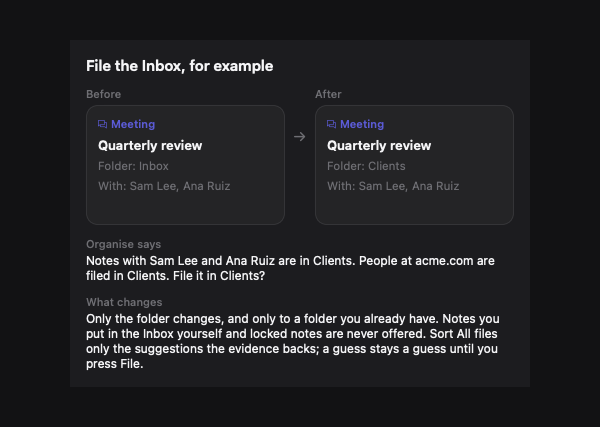
Words, similar notes and tags all read the same text, so on their own they never make a clear call: a clear case needs something about who was there or when it happened to agree. The reason is written in a sentence, such as “Notes with Sam Lee and Ana Ruiz are in Clients. People at acme.com are filed in Clients.”
What happens next
| Confidence | What MindLake does |
|---|---|
| Clear | The note moves on its own, into the folder (or the subfolder that holds most of that area’s notes). A toast says where it went and why, with Undo. An untagged note may get up to two tags the people in it usually carry. |
| Close | With AI on, your AI connection chooses between the top three folders, shown with their evidence, or leaves the note where it is. It is never handed the whole folder list. With AI off, the note stays put with a chip. |
| Weak | The note stays in the Inbox with a “File in …?” chip in its header. Point at the chip for the reason; click it to file. |
Filing runs after a summary or an automatic title, when you add a person with @, when a calendar meeting is linked or a note is made from one, and when a recording stops. It never moves a note you put in the Inbox yourself, a locked note, or a note in a folder mirrored with git, and notes outside the Inbox only ever get the tag pass.
Your corrections count most
Every hand change teaches it. Move a note with the folder chip in its header, a ~folder token, or Move to Folder on a selection; send a note back to the Inbox; press Undo on a toast; or add, rename or remove a tag by hand. Each is remembered with the evidence the note had at that moment: its people, their domains and organisations, their contact tags, the calendar series and its tags.
- One correction is enough. A note you moved by hand outweighs that evidence’s whole history elsewhere, so the next note with the same people follows it.
- Undoing an automatic move counts most of all, and the note is marked as filed by hand, so it is never moved again.
- A tag you removed is never offered again in that area; a tag you added counts for the area and for each person’s usual tags.
- Kept with your vault. Corrections live in a hidden file at the root of your vault, so they reach your other Macs and survive a reinstall. Settings ▸ AI ▸ Retagging & linking lists them, with Review to read each one (what moved where, and the evidence), a Forget button on each and Forget All.
Turning it off, and filing by hand
- Settings ▸ AI ▸ Retagging & linking ▸ Move Inbox notes when the evidence is clear is the switch for the automatic moves. Off, nothing moves by itself; chips still appear.
- Organise has a File the Inbox job: each Inbox note with the folder it belongs in and the reason. File moves one; Sort all files every suggestion the evidence backs. A guess is marked “A guess:” and is only ever filed by hand. See Organise.
- Folder descriptions in Settings ▸ Tags & Folders help the AI choose between close folders. See Tags and folders.